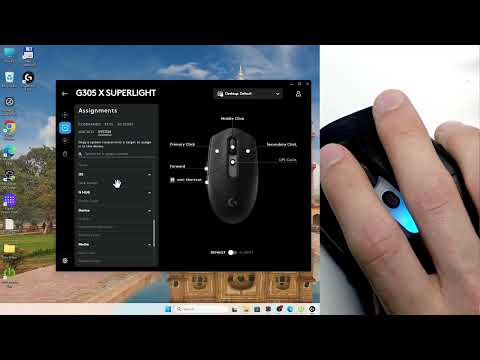
Want to adjust volume and skip tracks directly from your mouse without touching your keyboard? In this video I show you how to bind media controls on your Logitech G305 X SUPERLIGHT using G-Hub software. You’ll open the app, select your mouse, and head to Assignments in the sidebar. Click System to find options like next track, previous track, play/pause, volume up, and volume down. Then drag any control to a key on the mouse to assign it. You can reset any assignment by clicking Use Default.
How to bind media controls on Logitech G305 X SUPERLIGHT?
How to set up volume keys on Logitech G305 X SUPERLIGHT?
Where are media controls in Logitech G-Hub for G305 X SUPERLIGHT?
0:00 Intro – binding media controls to Logitech G305 X
0:06 Connect mouse and launch G-Hub software
0:22 Select Assignments in the sidebar
0:32 Find media controls in System category
0:49 Grab control and assign to mouse keys
1:10 Reset values by selecting Use Default
1:18 Wrap up – like, comment and subscribe
#Logi…

著者について