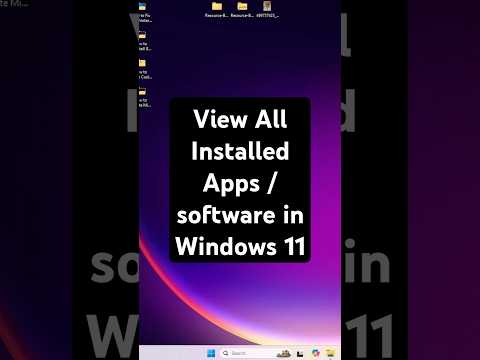
Curious about what apps are installed on your Windows 11 PC or laptop? In this quick and simple tutorial, we’ll show you how to view all installed apps using a hidden trick in Windows 11! Perfect for organizing your system, troubleshooting, or checking for unwanted apps. Whether you’re a beginner or a tech enthusiast, this step-by-step guide will help you take control of your apps in seconds! 💻✨
📝 Steps to View All Installed Apps in Windows 11:
→ Click the Start button (Windows icon) on the Taskbar.
→ Type Run in the search bar and press Enter to open the Run dialog box.
→ In the Run box, type shell:appsfolder and press Enter or click OK.
→ A File Explorer window will open, displaying all installed apps (including system apps, Microsoft Store apps, and desktop programs).
🎯 Why Watch This Video?
Super Fast: View all apps in under 30 seconds with a single command!
Beginner-Friendly: Clear visuals and simple steps for all users.
Take Control: Organize, uninstall, or manage apps like a …

著者について