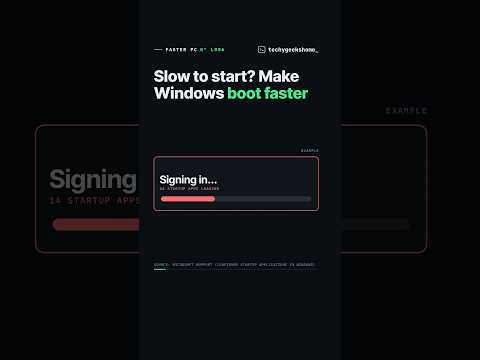
1. Start, Settings, Apps, Startup
2. Switch Off anything you don’t need the moment you sign in
3. Not sure? Task Manager, Startup apps tab, shows each app’s Startup impact (Low, Medium or High)
4. Start with the High impact ones, and keep your security app on
The app names in the video are examples.
Source: Microsoft Support, Configure Startup applications in Windows: https://support.microsoft.com/en-us/windows/configure-startup-applications-in-windows-115a420a-0bff-4a6f-90e0-1934c844e473
More Windows, explained: https://techygeekshome.info/
Follow TechyGeeksHome:
TikTok: https://www.tiktok.com/@techygeekshome
Instagram: https://www.instagram.com/techygeekshome.info
Facebook: https://www.facebook.com/profile.php?id=61594674665144
#windows #pctips #windows11

著者について