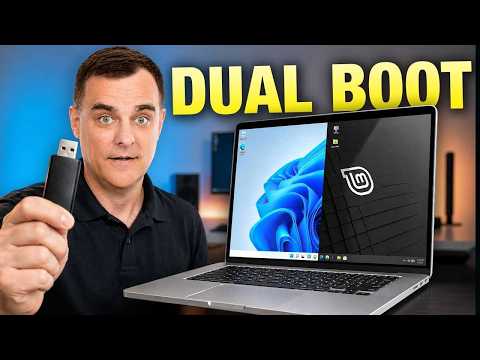
In this video, I walk you through the entire process of dual booting Windows and Linux Mint on a modern laptop, installing them side-by-side on the same drive. I show you how to download the Linux Mint ISO, use Rufus to create a bootable USB drive, and partition your existing drive using Windows Disk Management. Because modern hardware introduces specific roadblocks, I also cover the essential troubleshooting steps required before installation. You will see exactly how to back up your recovery keys, fully disable Windows BitLocker encryption, and navigate your BIOS/UEFI settings to turn off Secure Boot so that your Linux Mint installation does not fail.
Big thank you to Geekom for sponsoring this video. To get a discount on your Geekom X14 Pro and Geekom A5 Mini PC use the following codes. For my UK audience, the laptop is not available in the UK as yet:
For GeekBook X14 Pro:
10% Coupon: BOMGBOOK10
X14 Pro US Amazon: https://www.amazon.com/dp/B0FZ9THFGK?maas=maas_adg_8CCE02A37…

著者について